With the Okta sign-in and multi-factor authentication (MFA) process in place for U-M web services, you can now make it even easier to sign in to your UMICH account with Okta FastPass!
Okta FastPass is a feature of the Okta Verify application for desktop that allows users to authenticate with fingerprint recognition (macOS and Windows Hello) or facial recognition or PIN (Windows Hello). This allows for a passwordless experience when signing in to your UMICH account. Just as is true with programs like Apple Touch ID, all biometrics used to authenticate are kept right on your device, U-M does not store them and neither does Okta.
While using Okta FastPass is optional, everyone with a compatible computer is encouraged to set it up. Not only does FastPass offer a passwordless authentication experience, your computer will also become a backup device for MFA should you lose or not have immediate access to your mobile device.
How to set up Okta FastPass on your computer
Click the button below for your operating system to see step by step instructions on how to set up Okta FastPass on your computer.
Signing in with Okta FastPass
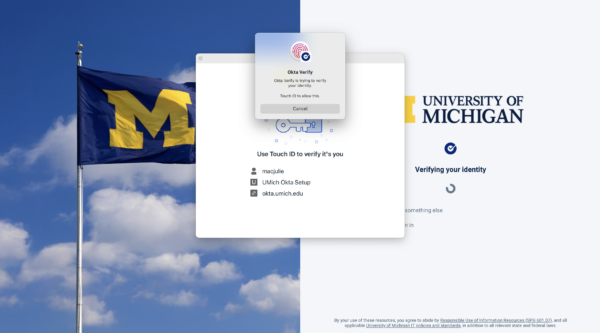
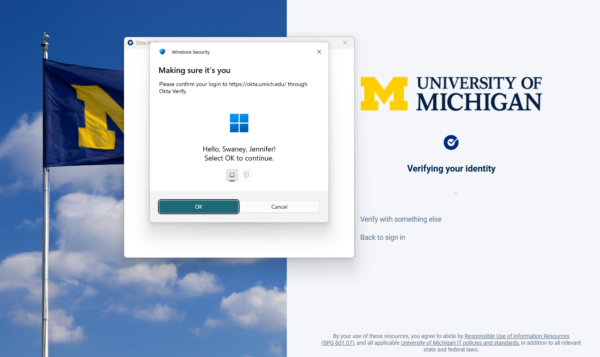
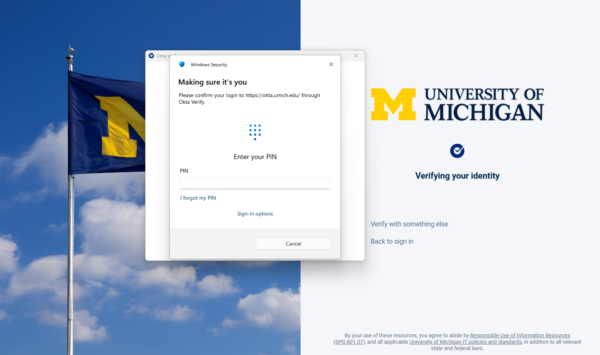
Once Okta FastPass is set up, whenever you sign-in to U-M web services on your computer, Okta will automatically prompt you to complete the authentication method for your operating system. Once you complete the authentication prompt, you will be signed in to your UMICH account without having to type your password!
Note: The Okta FastPass feature is not available to Michigan Medicine.


Okta Fastpass takes me back to the Okta Verify page and I need to do the MFA process with a notification on my phone.
Hi Dora, you may need to set up Touch ID (macOS) or Windows Hello on your computer in order to utilize the passswordless feature of FastPass. You can find instructions on the ITS website. If you need additional assistance, please reach out to the ITS Service Center.